004 — Customer Portal: Browsing and Draft Requests
Home
Screen name: Home Business purpose: Give you a snapshot of your company's activity and a starting point for shopping. Who uses it: All Customer Portal users. Navigation path: Sign in, or click the logo at any time.
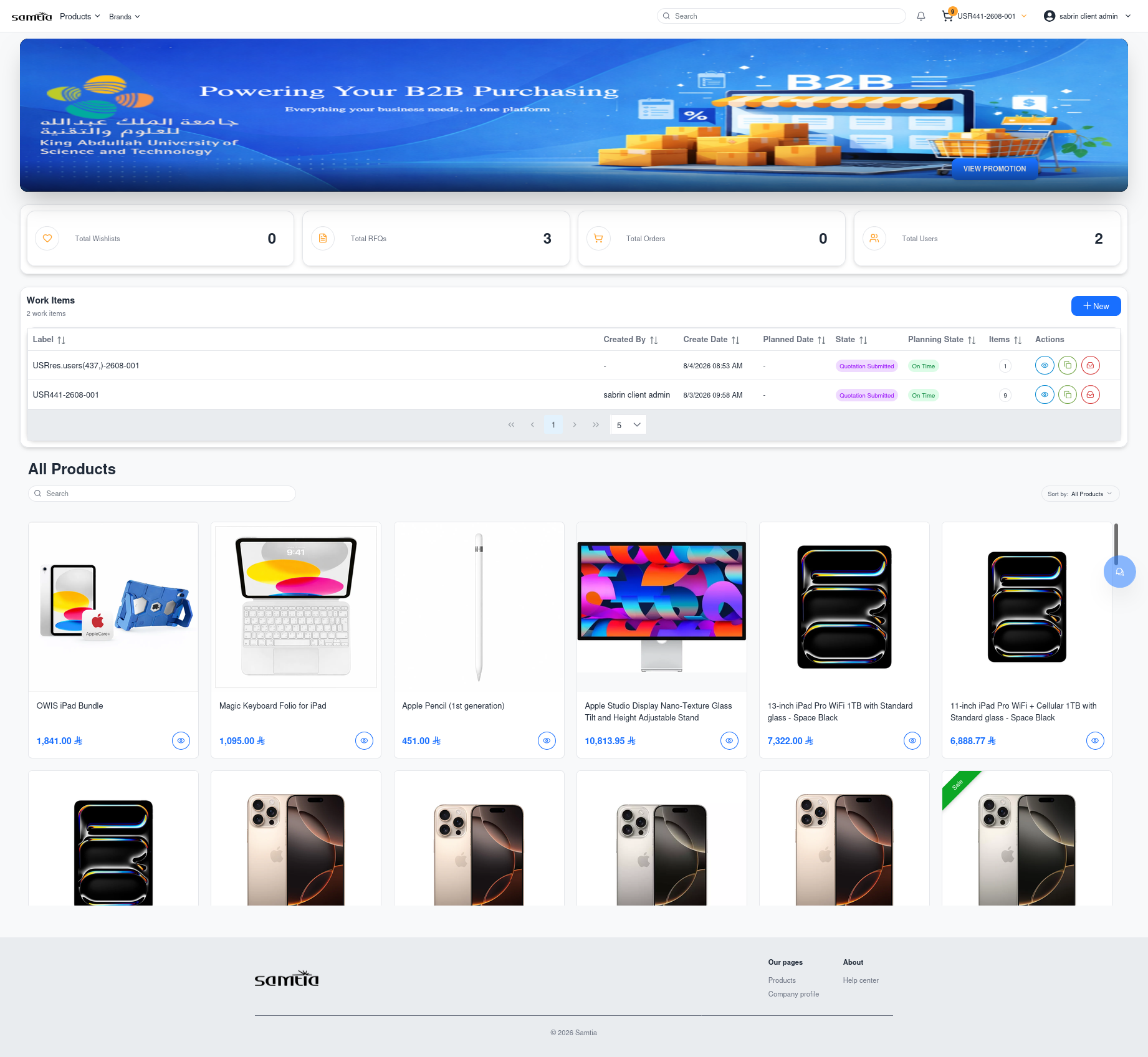
What the screen shows
| Area | What it tells you |
|---|---|
| Banner carousel | Promotions and announcements from SAMTIA. Some banners are aimed at your company specifically; clicking one may open a promotion page |
| Summary tiles | Four counts: Total Draft Requests, Total RFQs, Total Orders, Total Users |
| Action Items | The things needing your attention right now — draft requests you are still building, and quotations waiting for your decision |
| Product grid | Products from the catalogue, so you can start shopping without leaving the page |
Available actions
| Action | Result |
|---|---|
| Click a summary tile | Opens the matching section of Company Profile |
| Click an Action Item | Opens that order's detail screen |
| Click a product | Opens the product details |
Business rules
- Action Items shows only what needs you. Requests already with your Account Manager are not listed here — they are waiting on SAMTIA, not on you.
- All counts and items are for your company, including work created by colleagues.
Products List
Screen name: Products Business purpose: Find the products you want to buy. Who uses it: All Customer Portal users. Navigation path: Header → Products or Brands, or type in the search box.
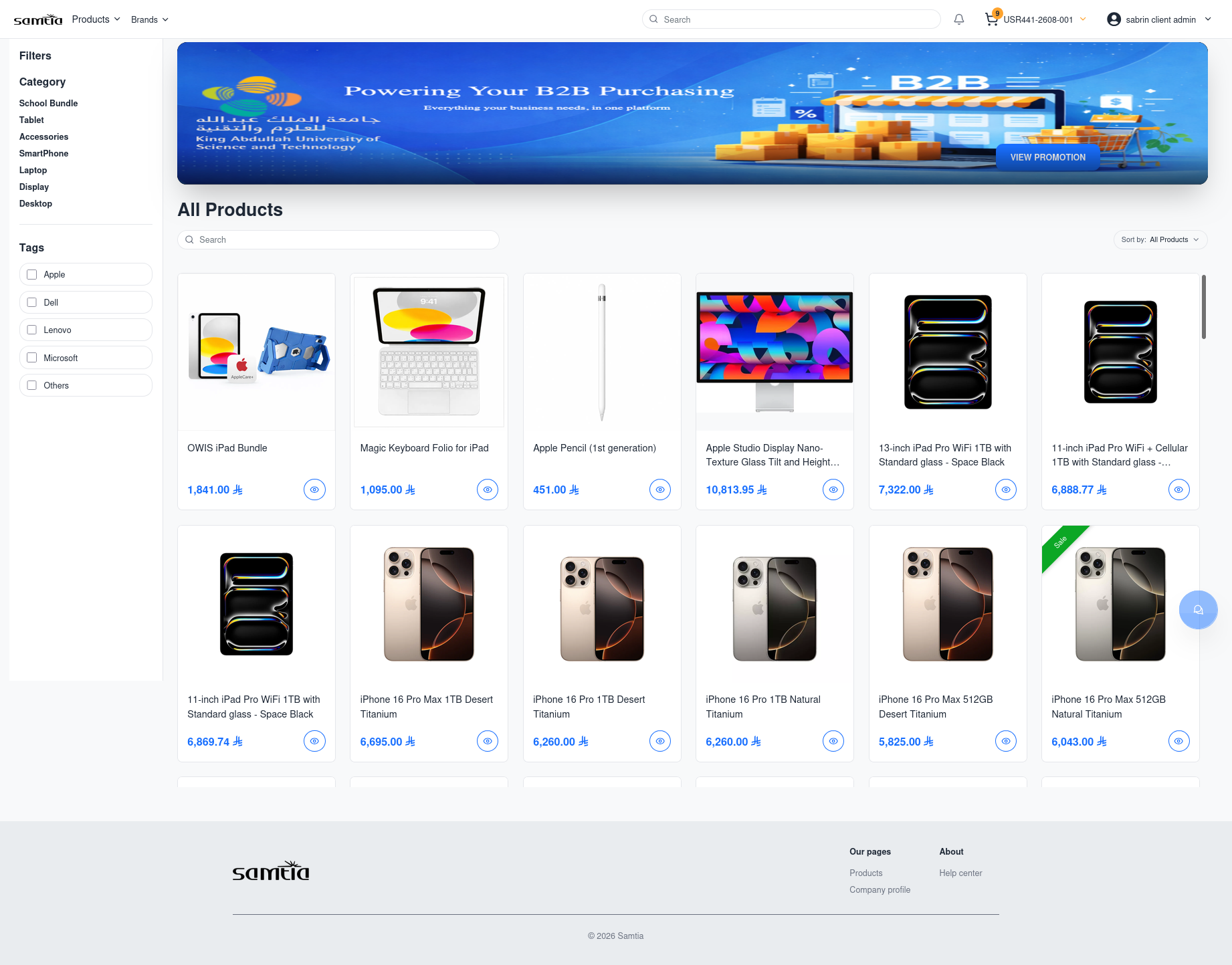
What the screen shows
Products appear as cards. Each card shows the product image, name, and your company's price — prices are specific to your company's agreement with SAMTIA, so they will not match another customer's.
Search and filters
| Tool | How to use it |
|---|---|
| Search | Type any part of a product name |
| Category | Narrow to a product category |
| Brands | Narrow to one or more manufacturers |
| Product Tags | Narrow by product labels |
| Product Attributes | Narrow by characteristics such as size or colour, where the products have them |
Active filters are shown as removable chips, so you can always see why the list is short. Results are paged — use the pager at the bottom to move through them.
If nothing matches, the screen reads No available products.
Business rules
- You only see products SAMTIA has priced for your company. If a colleague at another company mentions a product you cannot find, it may simply not be on your agreement — ask your Account Manager.
- If you cannot find something at all, you can still request it. See Requesting a product we do not stock in 005.
Product Details
Screen name: Product Details Business purpose: Give you everything you need to decide, then add the item to a draft request. Who uses it: All Customer Portal users. Navigation path: Click any product card.
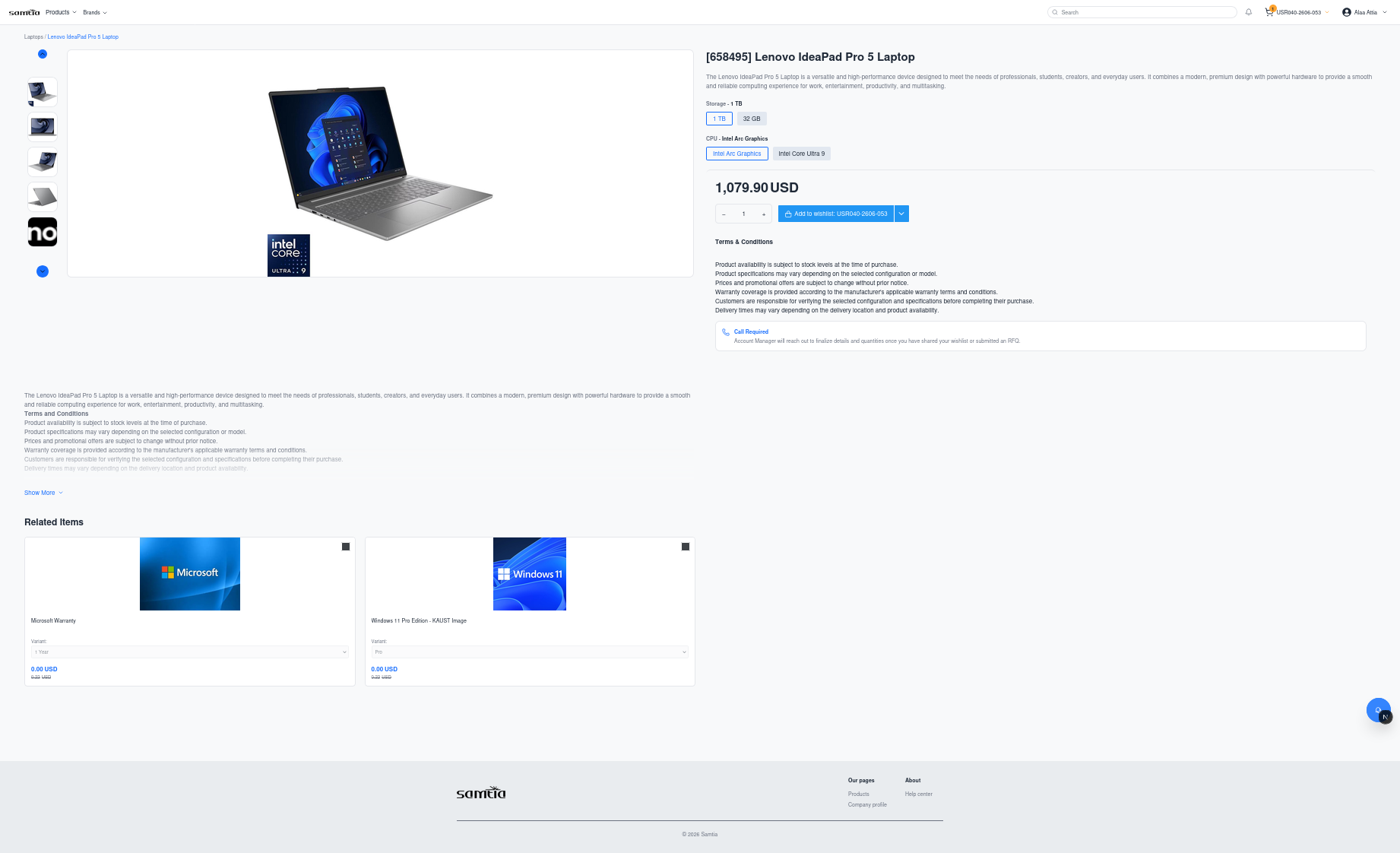
Main information displayed
| Element | Meaning |
|---|---|
| Image gallery | Product photographs; click to enlarge |
| Price | Your company's price for this product |
| Product Variant selector | Where a product comes in several versions (size, colour and similar), choose the one you want. Combinations that are not available cannot be selected |
| Description | Short and long descriptions from SAMTIA |
| Terms & Conditions | Product-specific conditions, where SAMTIA has published them |
| Product Notice | An important notice about this product, when one applies |
| Call Required | Shown on products that must be discussed by phone rather than ordered directly |
| Related Items / Alternative Products / Accessories | Suggestions worth considering alongside the product |
Available actions
| Action | Result |
|---|---|
| Choose a product variant | Updates the price and availability shown |
| Set quantity | Sets how many you want |
| Add | Adds the product to the draft request currently selected in the header |
| Click a related product | Opens that product |
Business rules
- The product is added to the draft request shown in the header selector. Check it first.
- Products marked Call Required need a conversation. You can still add them to a draft request and raise a request — your Account Manager will contact you.
Building a Draft Request
A draft request is your working basket. It is private to your company, you can have several at once, and nothing is committed until you submit it.
flowchart LR
    A["Create or choose<br/>a draft request"] --> B["Browse and add<br/>products"]
    B --> C["Set quantities and<br/>target prices"]
    C --> D["Give it a clear name"]
    D --> E{"Ready?"}
    E -->|Yes| F["Submit as RFQ"]
    E -->|"Want advice first"| G["Share with your<br/>Account Manager"]
Creating one
| Where | How |
|---|---|
| Header Request Selector | Choose New |
| Company Profile → Draft Requests | Use the New button |
Naming it
Every draft request has a Label — a name you choose. Use something you will recognise in three weeks: "Q3 lab restock" beats "list 2". The label is what your Account Manager sees too, so a clear name speeds up their reply.
Target prices
On each line you can enter a Target Price — the price you are hoping to pay. This is not a demand and does not change what you are charged. It tells your Account Manager where you need to land commercially, which usually produces a faster and more realistic quotation.
Two ways to involve your Account Manager
| You want | Use | What happens |
|---|---|---|
| A formal price | Submit RFQ | The draft request becomes a Request for Quotation and enters the pricing process |
| Advice, a sense-check, or help completing the list | Share draft request | Your Account Manager is notified and can look at it while it stays a draft in your hands |
Sharing is the lighter option — nothing is committed, and you can keep editing.
Business rules
- An empty draft request cannot be submitted. Add at least one product first; the screen will tell you Cannot submit empty order. Please add products first.
- Only the person who created a draft request can delete it. Colleagues can see and work on it, but not remove it.
- Once submitted, a draft request becomes an RFQ and moves out of the Draft Requests section.
Tips
- Copy an old order to save time. On any past order, use Copy to start a new draft request with the same products, then adjust. Ideal for regular repeat purchases.
- Use separate draft requests per project or budget. It keeps quotations clean and makes approvals easier on your side.
- Add target prices before submitting, not after. Giving your Account Manager the full picture up front avoids a second round of pricing.