007 — Account Management Portal: Navigation
The Layout
The Account Management Portal uses a permanent sidebar on the left. It can be collapsed to icons using the arrow at its top, giving you more room for wide tables.
flowchart LR
    S["Sidebar"] --> D["Dashboard"]
    S --> OM["Orders management"]
    S --> PM["Products management"]
    S --> CM["Customers management"]
    S --> M["Messages"]
    S --> C["Configuration"]

    OM --> O1["Shared Request"]
    OM --> O2["RFQ Quotations"]
    OM --> O3["Quotations"]
    OM --> O4["Orders"]
    OM --> O5["Archived Orders"]

    PM --> P1["Product Categories"]
    PM --> P2["Products"]
    PM --> P3["Brands"]
    PM --> P4["Pricelists"]

    CM --> C1["Customer Segments"]
    CM --> C2["Customers"]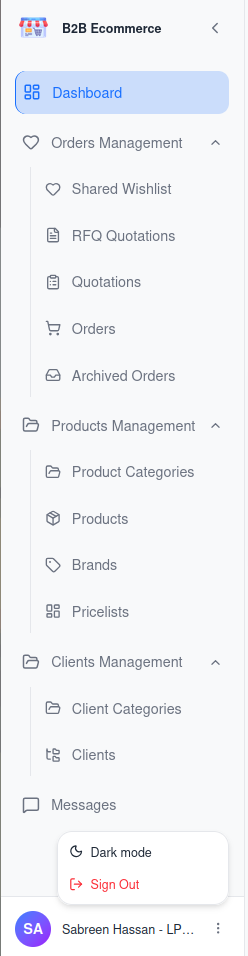
At the bottom of the sidebar is your name. The ⋮ button beside it offers Light mode / Dark mode and Sign Out.
Menu Guide
| Menu | Business purpose | Covered in |
|---|---|---|
| Dashboard | Your work queue and who is online | Below |
| Orders management | Everything to do with customer demand | 008, 009 |
| ├ Shared Request | Draft baskets customers have flagged for your attention | 008 |
| ├ RFQ Quotations | Requests waiting for you to price | 008 |
| ├ Quotations | Quotations you have sent, and POs received | 008 |
| ├ Orders | Confirmed business being fulfilled | 008 |
| └ Archived Orders | Cancelled business | 008 |
| Products management | The catalogue customers browse | 010 |
| ├ Product Categories | The browsing structure | 010 |
| ├ Products | The products themselves | 010 |
| ├ Brands | Manufacturers | 010 |
| └ Pricelists | Prices and price rules | 012 |
| Customers management | Customer companies | 011 |
| ├ Customer Segments | Customer segments and their default pricing | 011 |
| └ Customers | The customer companies themselves | 011 |
| Messages | Live conversations with customers | 013 |
| Configuration | Reserved for future settings | — |
Note on Configuration. This menu item is present but has no content yet. There is nothing to do there.
Dashboard
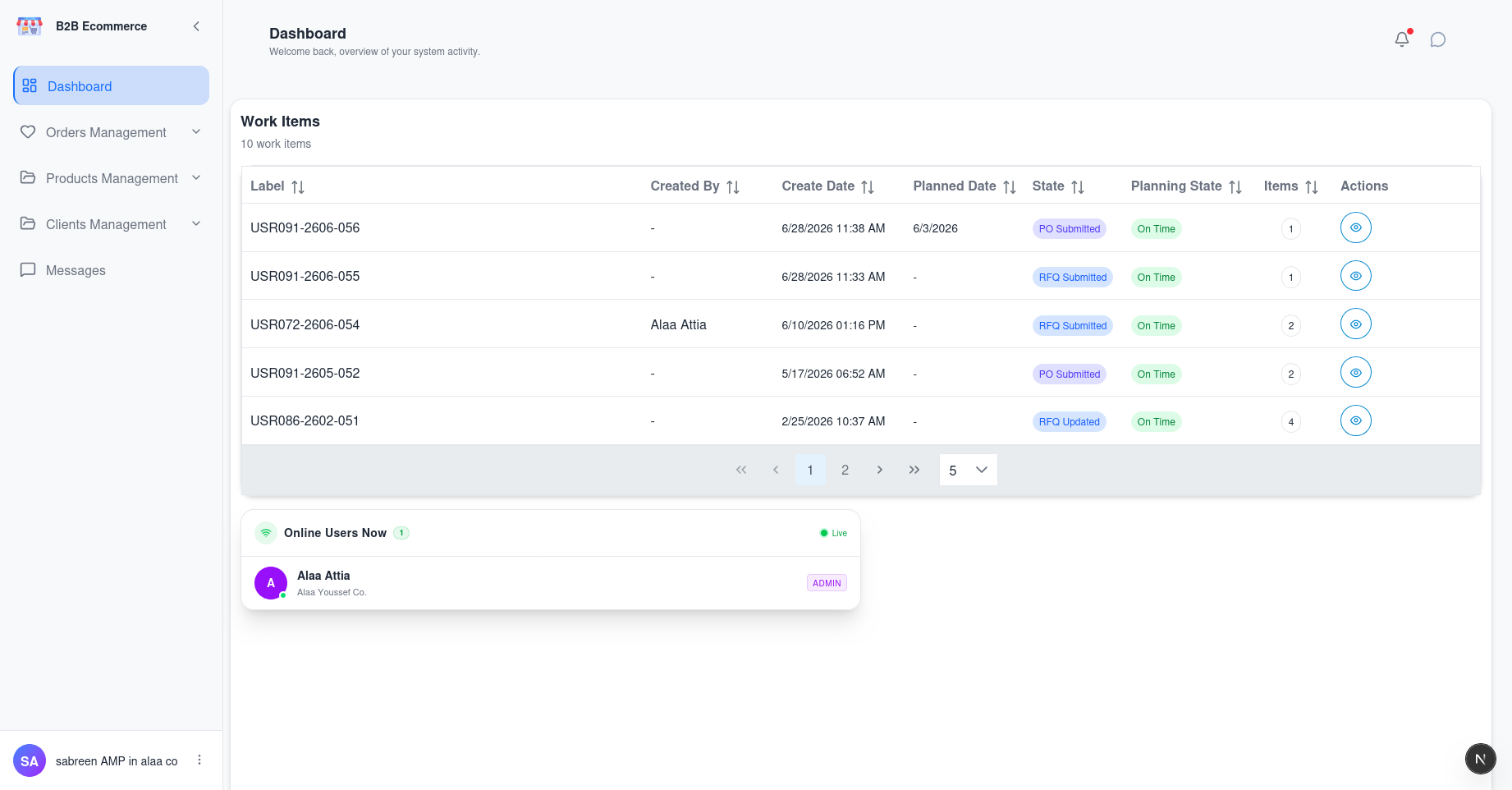
Screen name: Dashboard Business purpose: Show you what needs your attention today and who is currently online. Who uses it: All Account Management Portal users. Navigation path: Sidebar → Dashboard. This is also where you land after signing in.
Main information displayed
| Area | What it shows |
|---|---|
| Action Items | Orders needing action from you — new requests, revised requests, and quotations the customer has accepted with a Purchase Order. The count is shown beside the title |
| Online Users | Customer users currently signed in, updating live. When nobody is signed in it reads No one online |
Available actions
| Action | Result |
|---|---|
| Click an Action Item | Opens that order. Accepted quotations open in the Quotations area; new and revised requests open in the RFQ area |
| Adjust rows shown | Change how many Action Items are listed at once |
Business rules
- Action Items is a to-do list, not a report. It deliberately excludes orders waiting on the customer — those are not your action.
- Everything shown is limited to your own assigned customers.
- The Online Users panel is genuinely live. It is useful before starting a chat: if the person is online, expect a quick reply.
What Every Sales Order Screen Has in Common
All five order queues use the same screen. Once you know it, you know all of them.
| Feature | Purpose |
|---|---|
| Search | Find by order reference, label or customer |
| Filters | Narrow by Created Date and Requested Delivery Date ranges |
| Column chooser | Show or hide columns to suit your work |
| Sorting | Click a column heading |
| Paging | Move through long lists |
| Customer filter | Focus on one customer company |
| User filter | Focus on one person at a customer company |
The column chooser is worth setting up once: hide what you never use, and reveal Quotation Viewed Date and Quotation Downloaded Date when you want to see how customers are engaging with your quotations.
Tips
- Start every day on the Dashboard. It answers "what is mine to do?" in one screen.
- Collapse the sidebar when working with wide order tables.
- You only ever see your own customers. If a customer's record is missing, they are almost certainly assigned to a different Account Manager.