011 — Account Management Portal: Customer Management
Two screens control who your customers are and how they are treated commercially.
Customer Segments
Screen name: Customer Segments Business purpose: Group customers into commercial segments, each with its own default pricing. Who uses it: Account Managers, Business Administrators. Navigation path: Sidebar → Customers management → Customer Segments.
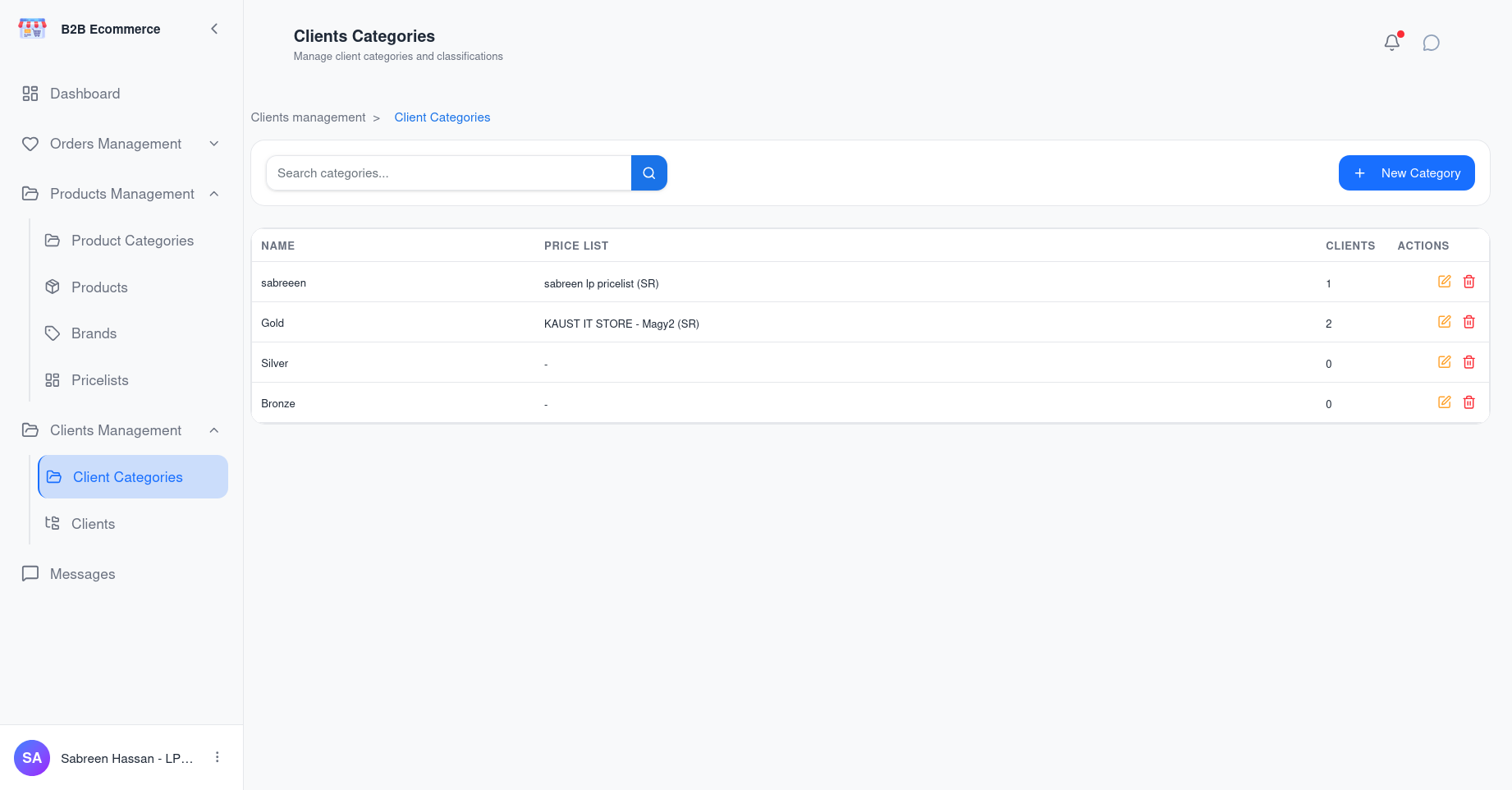
Main information displayed
| Column | Meaning |
|---|---|
| Name | The segment name, for example Gold, Distributor, Government |
| Company | Which of your business entities it belongs to |
| Price List | The pricing applied by default to customers in this segment |
| Customers | How many customer companies are currently in it |
| Status | Whether the category is in use |
Available actions
| Action | Result |
|---|---|
| Add category | Creates a new segment |
| Edit | Changes the name or default price list |
| Delete | Removes the segment |
| Search | Finds a category by name |
Why this screen matters
The category is the link between who a customer is and what they pay. Assigning a customer to a category applies that category's price list, so pricing policy is set once for a whole segment rather than customer by customer.
Business rules
- Changing a category's price list affects customers assigned to it — review the Customers count before making a change.
- A customer can be given a price list that differs from their category's default. The system resolves the difference and records what it did in the customer's history, so the outcome is always traceable.
Customers
Screen name: Customers Business purpose: Maintain the customer companies you serve. Who uses it: Account Managers, Business Administrators. Navigation path: Sidebar → Customers management → Customers.
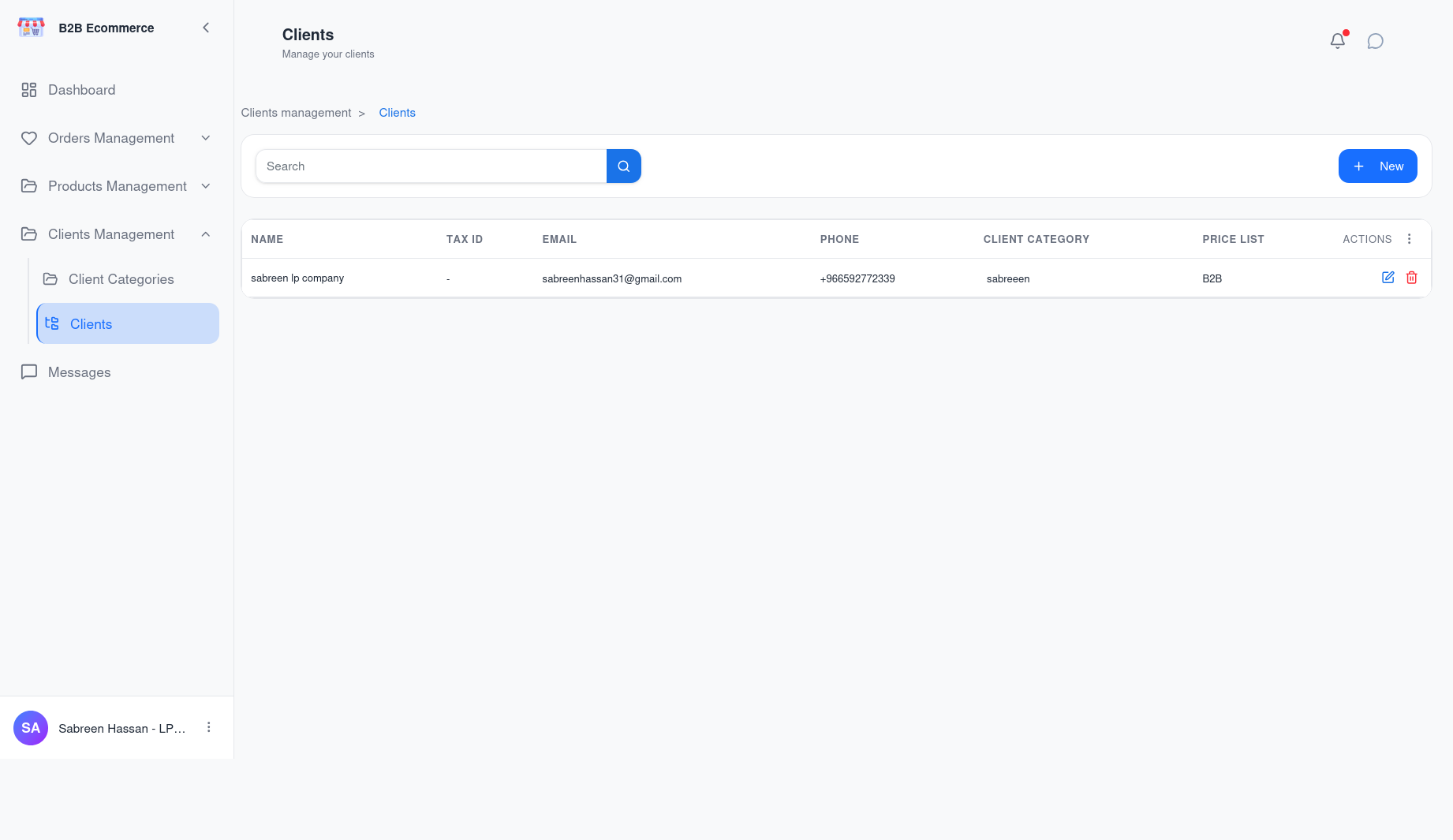
Main information displayed
| Column | Meaning | Shown by default |
|---|---|---|
| Name | The customer company | Yes |
| Tax ID | Their tax registration number | Yes |
| Main contact address | Yes | |
| Phone | Main contact number | Yes |
| Customer Segment | Their commercial segment | Yes |
| Price list | The pricing they receive | Yes |
| City | Location | No — turn on when needed |
Available actions
| Action | Result |
|---|---|
| New Customer | Opens the customer form |
| Edit | Opens an existing customer |
| Delete | Archives the customer |
| Restore | Brings an archived customer back |
| Search | Finds by company name |
Business rules
- You see only your own customers.
- Deleting archives rather than erases — history is preserved and the customer can be restored.
The Customer Form
Opening a customer gives you four tabs.
| Tab | What you maintain |
|---|---|
| Company Info | Identity, contact details, address, commercial settings |
| Users | The people at that company who can use the portal |
| Banners | Promotional banners aimed at this customer specifically |
| Attachments | Documents relating to the customer |
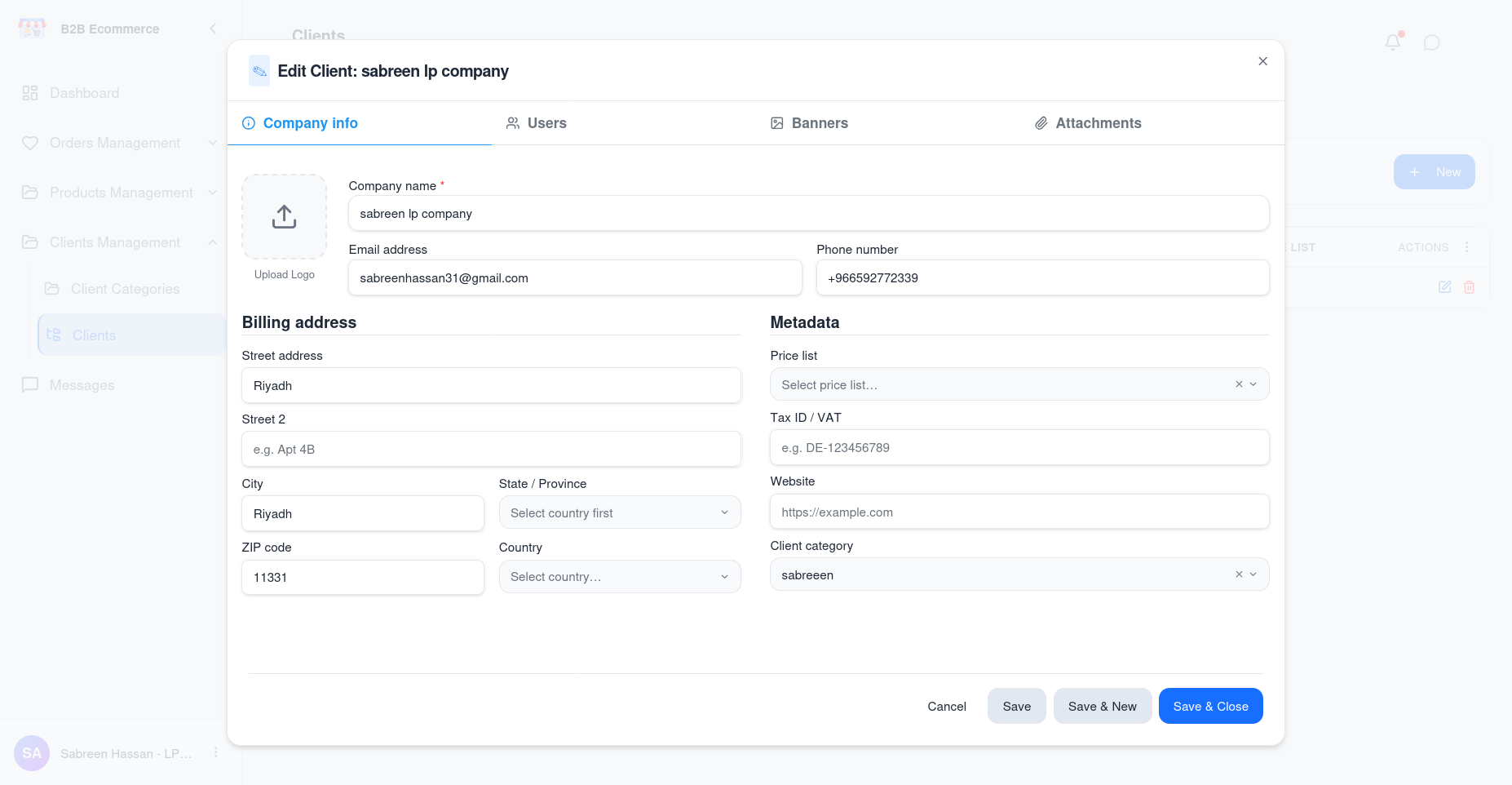
Company Info
| Field | Business purpose | Example |
|---|---|---|
| Company name | The customer's registered name | My company |
| Tax ID | Tax registration | DE-123456789 |
| Main contact address | Email@company.com | |
| Phone | Main contact number | +1 30 123 4567 |
| Website | Their website | https://example.com |
| Street / Street 2 | Address | 123 Main St / Apt 4B |
| City | City | Riyadh |
| Postal code | Postcode | 11564 |
| Country / State | Location, chosen from a list | |
| Account manager | Who at SAMTIA owns this customer | |
| Customer Segment | Their commercial segment | |
| Logo | Their logo, with a preview |
The Account Manager field is the most important one
It determines:
- Which SAMTIA employee sees this customer's orders
- Who receives e-mail alerts when the customer submits a request
- Who appears as the customer's contact in chat
If it is wrong or empty, the customer's requests may go unnoticed. Check it whenever a customer reports being ignored.
Users tab
Create and manage the customer's portal accounts without leaving the customer record.
| Action | Result |
|---|---|
| Add user | Creates a portal account for that company |
| Edit | Updates name, e-mail, phone |
| Activate / Deactivate | Controls the SAMTIA-side switch |
| Send invitation | E-mails the user their access details, including a QR code |
Remember the two switches described in 002: you control Account Enabled; the customer's own administrator controls Portal Access Enabled. Both must be on.
Banners tab
Banners created here appear on this customer's Home page only. Use them for customer-specific announcements — a negotiated promotion, a delivery notice, a contract renewal reminder.
| Setting | Purpose |
|---|---|
| Image and description | What the customer sees |
| Active period | When it starts and stops showing, so campaigns run automatically |
| Promotion link | Where clicking it takes them |
| Linked products or categories | Ties the banner to specific catalogue content |
Attachments tab
Documents relating to the customer as a whole — contracts, credit approvals, certificates. This is separate from files attached to individual orders.
Setting Up a New Customer
flowchart TB
    A["1 · Confirm the customer segment<br/>exists with the right price list"] --> B["2 · Create the customer —<br/>Company Info tab"]
    B --> C["3 · Assign yourself as<br/>Account Manager"]
    C --> D["4 · Set the customer segment<br/>and price list"]
    D --> E["5 · Create their first user —<br/>Users tab"]
    E --> F["6 · Send the invitation"]
    F --> G["7 · Customer's admin creates<br/>their own colleagues"]
Step 5 matters: make the customer's first user their Company Administrator, so they can create the rest of their team themselves rather than coming back to you for each person.
Common Situations
"Our people cannot sign in"
- Open the customer → Users tab
- Check Account Enabled is on for that person — that is your switch
- If it is on, the customer's own administrator has switched off Portal Access Enabled
"We are seeing the wrong prices"
- Open the customer → Company Info
- Check the Customer Segment and Price list
- If the price list has been set individually and differs from the category default, that individual setting is what applies
"We never got the invitation"
- Open the customer → Users tab
- Confirm the e-mail address is correct
- Use Send invitation again
Tips
- Fill in the Tax ID at setup. It is needed for invoicing and is awkward to chase later.
- Use customer-specific banners sparingly — one clear message lands better than several.
- Archive rather than delete a customer who has gone quiet. Restoring is instant if they return.