008 — Account Management Portal: Sales Order Queues
The five order screens are the same screen showing different slices of your customers' business. They are ordered in the sidebar to follow the natural life of a deal.
flowchart LR
    SW["Shared Request<br/>informal interest"] --> RFQ["RFQ Quotations<br/>waiting on you"]
    RFQ --> Q["Quotations<br/>waiting on customer"]
    Q --> O["Orders<br/>being fulfilled"]
    Q --> A["Archived Orders<br/>cancelled"]
    RFQ --> A
What Each Queue Contains
| Queue | Shows | Who acts next |
|---|---|---|
| Shared Request | Draft baskets a customer has flagged for your attention | You — proactively |
| RFQ Quotations | Requests submitted and revised requests | You — price them |
| Quotations | Quotations you have sent, and Purchase Orders received back | Customer, then you |
| Orders | Confirmed business in Processing and delivered | You — fulfil |
| Archived Orders | Cancelled business | Nobody |
The two that need daily attention
- RFQ Quotations is your inbox. Every record here is waiting on you.
- Quotations contains two different things: quotations still awaiting a customer decision (waiting on them), and quotations where the customer has uploaded a Purchase Order (waiting on you to confirm). Use the State column to tell them apart.
The Queue Screen
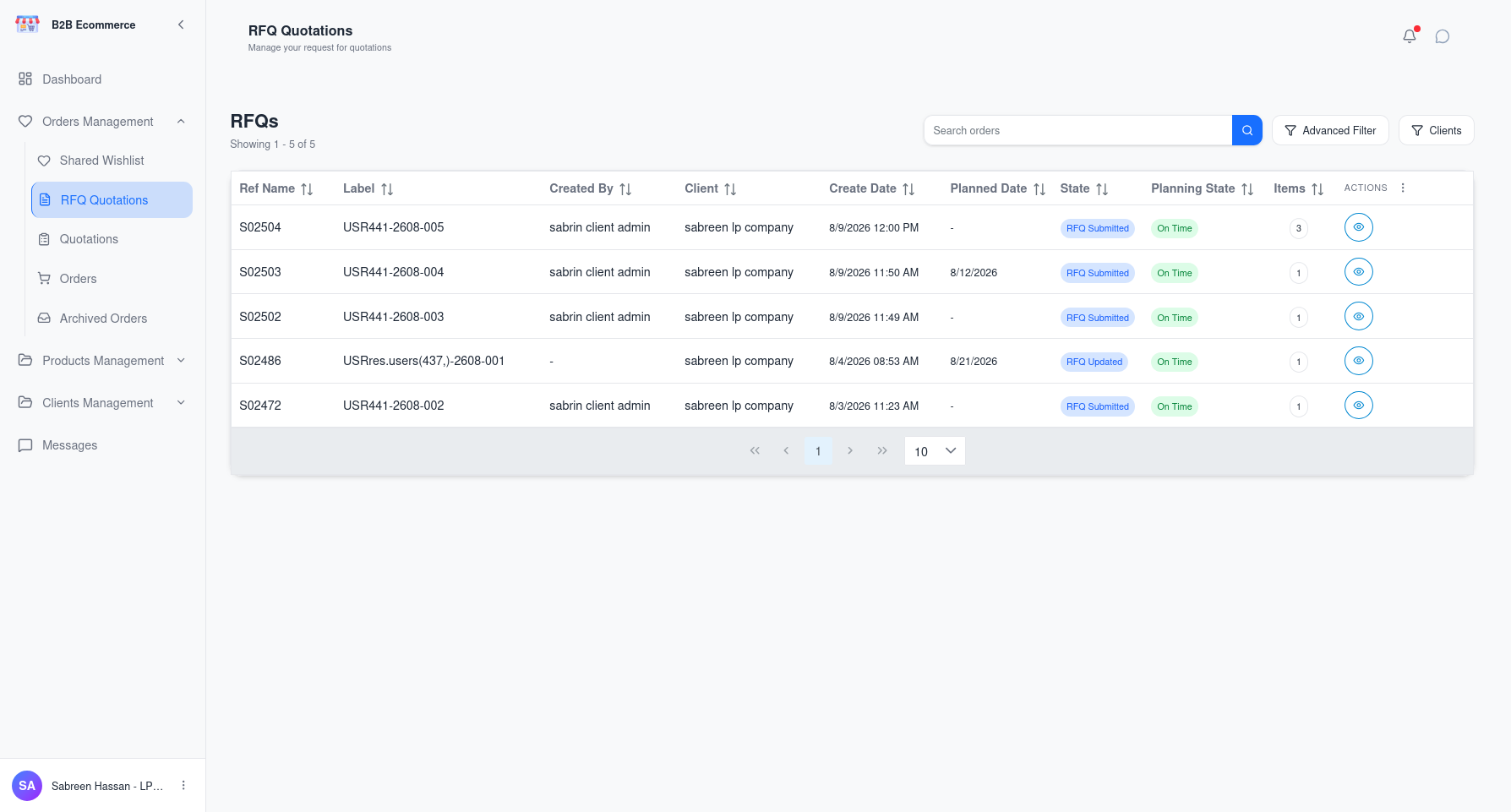
Screen name: Shared Request / RFQ Quotations / Quotations / Orders / Archived Orders Business purpose: Find the piece of business you need to work on. Who uses it: Account Managers, Sales Representatives, Customer Service, Read Only Managers. Navigation path: Sidebar → Orders management → choose the queue.
Main information displayed
| Column | What it tells you | Shown by default |
|---|---|---|
| Ref Name | The order reference | Yes |
| Label | The name the customer gave it | Yes |
| Created By | Which person at the customer raised it | Yes |
| Customer | The customer company | Yes |
| Create Date | When it was raised | Yes |
| Requested Delivery Date | When the customer needs the goods | Yes |
| State | Where it has reached | Yes (hidden on Archived Orders, where everything is cancelled) |
| Schedule Status | Late / On Time / Upcoming | Yes |
| Items | Number of product lines | Yes |
| Quotation Viewed Date | When the customer opened the quotation | No — turn on when needed |
| Quotation Downloaded Date | When the customer printed or downloaded it | No — turn on when needed |
The two hidden columns are worth knowing about
Quotation Viewed Date and Quotation Downloaded Date tell you whether a customer has actually engaged with a quotation. A quotation sent five days ago with no Quotation Viewed Date usually means it has not been seen — a very different conversation from one that has been printed twice.
Turn them on from the column chooser when chasing quotations.
Search and filters
| Tool | What it does |
|---|---|
| Search | Finds by reference, label or customer |
| Filters | Narrows by Created Date range and Requested Delivery Date range (From / To) |
| Customer filter | Restricts to one customer company |
| User filter | Restricts to one person at a customer company |
| Column chooser | Shows or hides columns; you can reveal or hide all at once |
| Sorting | Click any column heading |
| Paging | Move through the list |
Available actions
| Button | What it does |
|---|---|
| 👁 View Details | Opens the order for pricing and action — see 009 |
All real work happens inside the order, not from the list.
Business rules
- You see only your own customers. Every queue is already filtered to the customer companies assigned to you.
- The list is filtered by business stage, so an order will move between queues as it progresses. If you cannot find something, check the queue matching its current stage.
Shared Request — the proactive queue
This queue is different in character from the other four. Nothing here has been formally requested — a customer has simply flagged a draft basket and asked you to look.
flowchart LR
    A["Customer builds a draft request<br/>and clicks Share"] --> B["You are notified"]
    B --> C["It appears in<br/>Shared Request"]
    C --> D["You review and<br/>advise the customer"]
    D --> E["Customer submits it<br/>as an RFQ"]
Why it matters commercially: these are deals before they become requests. A customer sharing a draft request is usually asking for help — availability, alternatives, or a sense of pricing. Acting here shapes the request before it is formalised.
Open the record, use Open Chat to talk to the customer, and when the conversation is done use Reply Done to clear the attention flag.
Daily Routine
flowchart TB
    A["1 · Dashboard —<br/>see everything needing you"] --> B["2 · RFQ Quotations —<br/>price new and revised requests"]
    B --> C["3 · Quotations —<br/>confirm orders where a PO has arrived"]
    C --> D["4 · Quotations —<br/>chase quotations with no Quotation Viewed Date"]
    D --> E["5 · Shared Request —<br/>advise on flagged baskets"]
E --> F["6 · Messages —<br/>clear unread conversations"]Tips
- Sort by Schedule Status to bring Late items to the top. The customer's requested delivery date is the best guide to urgency.
- Set up your columns once. Hide what you never read; the tables become far easier to scan.
- Archived Orders is a reference, not a bin. Cancelled requests often come back — copying an archived order is a quick way to restart a conversation.