013 — Messages and Notifications
The platform gives you three separate ways to communicate. Choosing the right one saves time and keeps records clean.
| Channel | Best for | Where it lives |
|---|---|---|
| Chat | Quick back-and-forth while both people are available | The Messages screen, or Open Chat on an order |
| Comments | Discussion that must stay attached to an order permanently | The order's Comments panel |
| Account Manager Note | A standing statement about an order the customer must see | The order summary (Account Managers only) |
Live Chat
For customers
Screen name: Chat Business purpose: Talk to your Account Manager directly. Who uses it: All Customer Portal users. Navigation path: Any order → Open Chat.
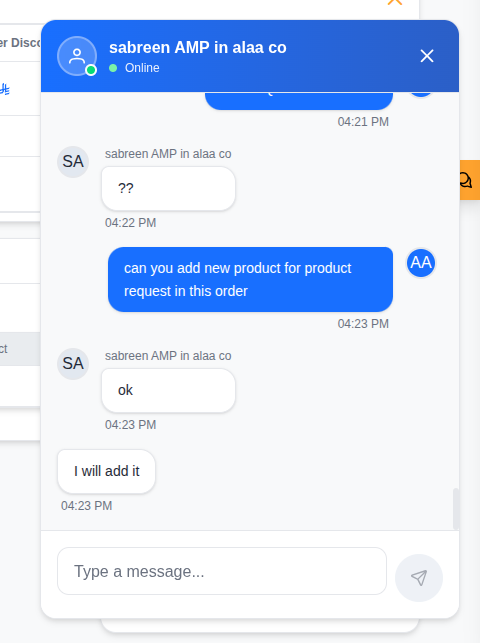
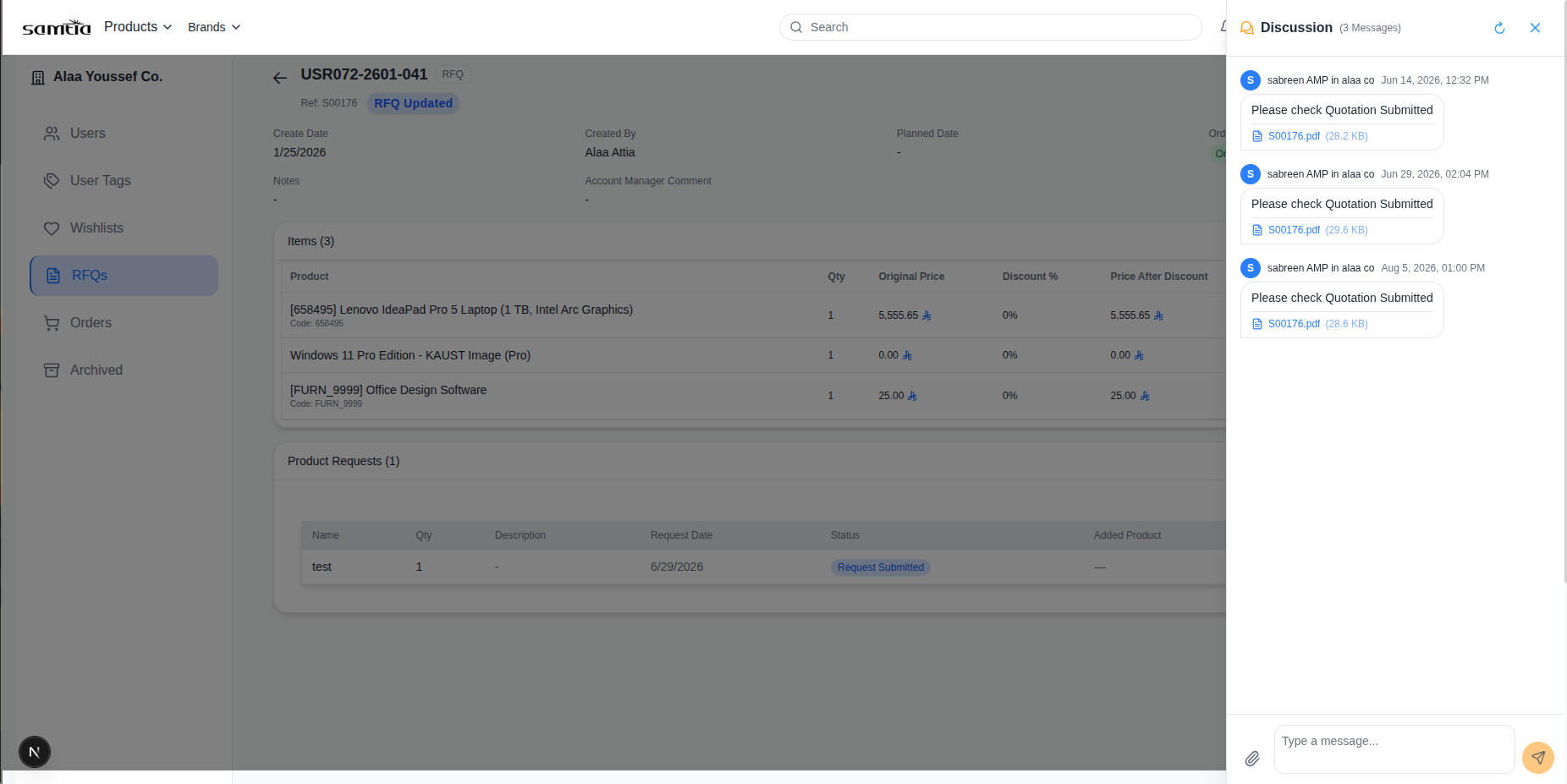
Your company has one shared conversation with your Account Manager. Colleagues at your company see the same history — chat is a company channel, not a private one.
For Account Managers
Screen name: Messages Business purpose: Handle conversations with all your customers in one place. Who uses it: Account Managers, Sales Representatives, Customer Service. Navigation path: Sidebar → Messages.
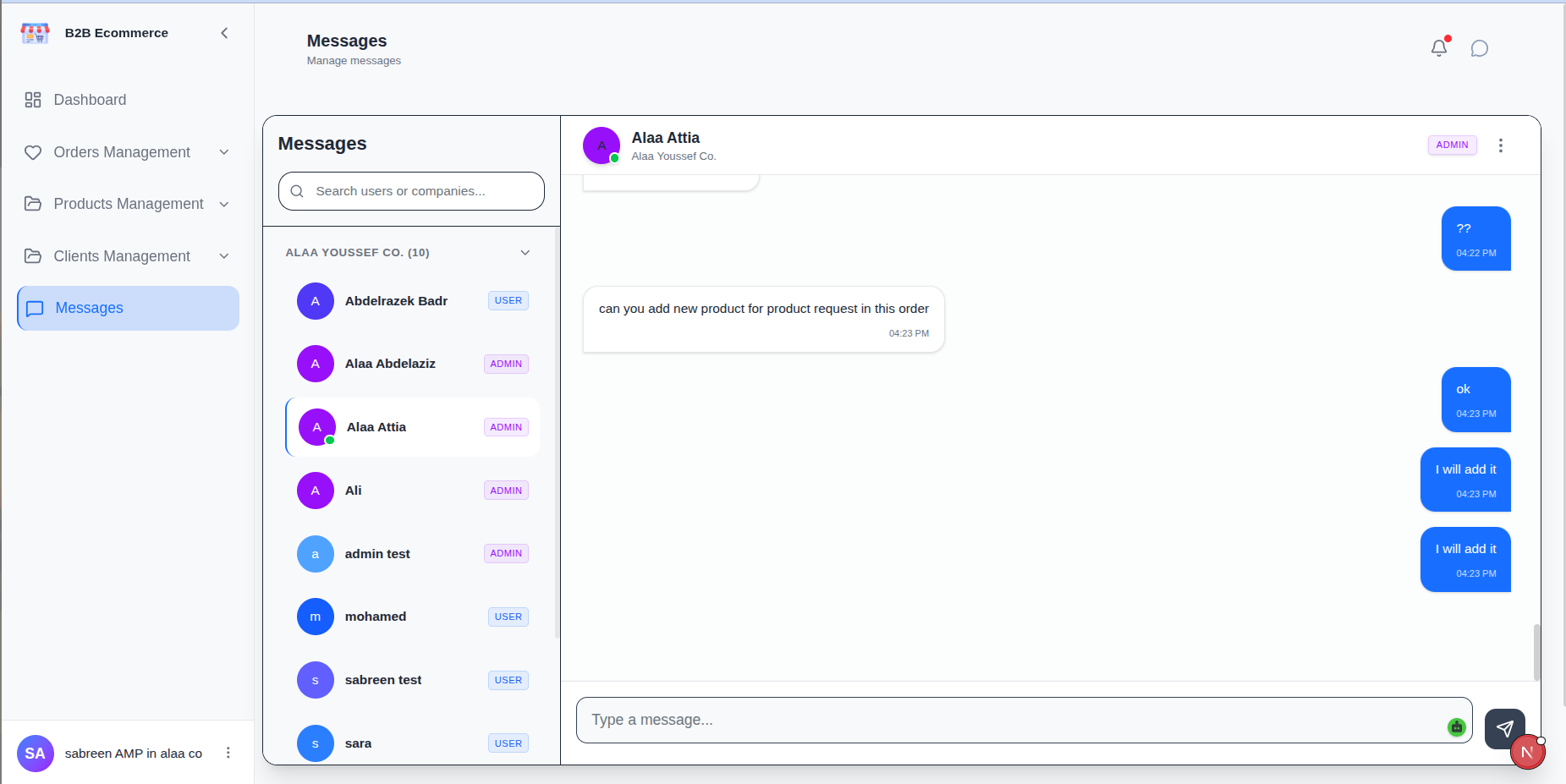
| Area | What it shows |
|---|---|
| Conversation list | One entry per customer company, with the last message and an unread count |
| Conversation | The full history with the selected customer |
| Message box | Where you reply |
You can also open a conversation in context from any order using Open Chat — useful when the question is about that specific order.
Business rules
- Messages are delivered live. Both sides see new messages without refreshing.
- You only see your own customers' conversations.
- Opening a conversation marks it as read and clears the unread count.
Online Status
People appear as online, away or offline.
| Where you see it | Use |
|---|---|
| Chat window | Whether the person you are writing to is available |
| Dashboard → Online Users | Which customers are working in the portal right now |
Status updates automatically. Signing out marks you offline immediately.
Practical use: if a customer is online, a chat message usually gets a fast answer. If they are offline, a comment on the order or an e-mail is more likely to be seen.
Notifications
Where: The 🔔 bell in the Customer Portal header; the notification area in the Account Management Portal.
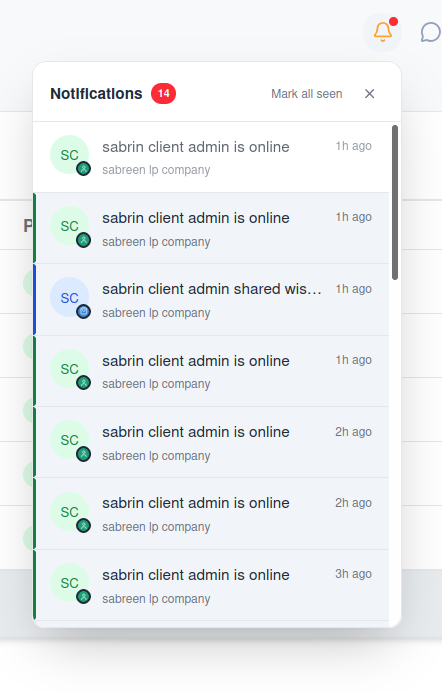
What triggers a notification
| Event | Who is told |
|---|---|
| A request is submitted or revised | The Account Manager |
| A Purchase Order is submitted | The Account Manager |
| A draft request is shared | The Account Manager |
| An order changes stage | The customer's company |
| A new message arrives | The other side |
| A user signs in or is activated | The company |
Reading them
| Action | Result |
|---|---|
| Click a notification | Opens the record it refers to |
| Mark all as seen | Clears the unread indicator |
When there is nothing new, the panel reads All caught up.
Business rules
- You never receive a notification for your own action. If you submit a request, you are not told about it — your colleagues and your Account Manager are.
- Notifications are shared across your company. A colleague may have already acted on one.
E-mail Alerts
Some events also send an e-mail, so nothing is missed when nobody is signed in.
| Event | Who receives an e-mail |
|---|---|
| A request is submitted | The Account Manager |
| A request is revised | The Account Manager |
| A Purchase Order is submitted | The Account Manager |
| A draft request is shared | The Account Manager |
| A quotation is sent | The customer |
| A user invitation | The invited user |
| A password reset code | The requesting user |
Account Manager alert e-mails include a direct link into the portal, so you can go straight to the record.
Note: e-mail alerts to Account Managers can be switched off centrally by an administrator. In-portal notifications are always created regardless — if you are not receiving e-mails but the bell is working, this setting is the reason.
Attention Flags on Sales Orders
When a customer shares a draft request or posts a message, the order is flagged as needing attention. The flag appears on the order and drives the Shared Request queue.
flowchart LR
    A["Customer shares a draft request<br/>or posts a message"] --> B["Order flagged<br/>as needing attention"]
    B --> C["Account Manager<br/>responds"]
    C --> D["Reply Done clears<br/>the flag"]
Clearing the flag matters. If nobody clicks Reply Done, the Shared Request queue fills with items that have already been handled and stops being useful to the team.
Choosing the Right Channel
flowchart TB
    Q{"What are you<br/>communicating?"} -->|"Quick question,<br/>they're online"| CHAT["Chat"]
    Q -->|"Must stay on the<br/>record permanently"| COM["Comment on the order"]
    Q -->|"A condition the customer<br/>must not miss"| AMC["Account Manager Note"]
Q -->|"A document"| ATT["Attach it to the order"]| Situation | Best channel |
|---|---|
| "Is this in stock?" | Chat |
| "Lead time is six weeks on line 3" | Account Manager Note |
| "Approved by our finance team on 4 March" | Comment |
| Revised specification document | Attachment |
| "Why has the price changed since last quarter?" | Chat, then record the outcome as a Comment |
Tips
- Check Online Users before chasing by chat. Offline customers will not reply, however urgent the message.
- Anything a customer will need to refer back to belongs in a Comment, not chat. Chat is for the conversation; comments are the record.
- Clear attention flags as you go. It takes one click and keeps the shared queues honest.