009 — Account Management Portal: Working a Sales Order
This is the screen where you earn the business. Everything you do to a customer request happens here.
Screen name: Order Details Business purpose: Price a request, answer the customer, and move the order to its next stage. Who uses it: Account Managers, Sales Representatives, Customer Service. Navigation path: Any order queue → 👁 View Details.
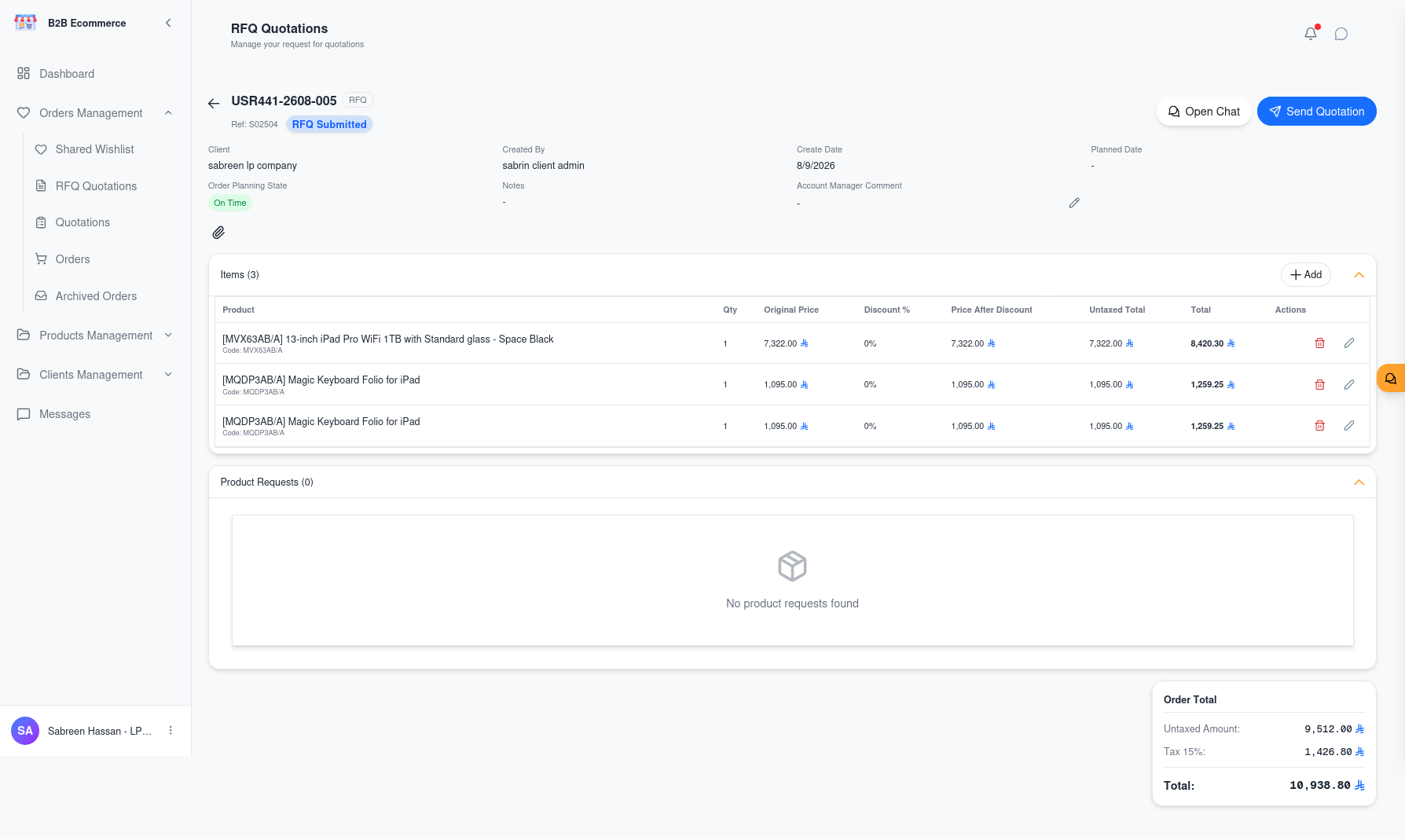
Screen Layout
flowchart TB
    H["Header — label, state, action buttons"] --> S["Summary — customer, dates, notes, your comment"]
    S --> L["Product lines — where you price"]
    L --> P["Panels — Add Products · New Product Requests · Comments & Attachments"]
Summary Panel
| Field | Meaning | Can you edit it? |
|---|---|---|
| Customer | The customer company | No |
| Created By | Which person raised it | No |
| Create Date | When it was raised | No |
| Requested Delivery Date | When the customer needs the goods | No |
| Order Schedule Status | Late / On Time / Upcoming | No — calculated |
| Notes | The customer's stated purpose | No |
| Account Manager Note | Your message to the customer about this order | Yes |
| Return Reason | Why the order was returned, when it has been | No |
The Account Manager Note
This is your channel for anything that must stay attached to the order — a condition, a lead time, an explanation of the pricing. The customer sees it on their own order screen.
Click the edit icon beside the field, type your comment, and save. Use the cancel icon to discard.
Prefer this over chat for anything the customer will need to refer back to later.
Pricing the Sales Order
The product lines table is where the commercial work happens.
| Column | Meaning | Can you edit it? |
|---|---|---|
| Product | What the customer wants | Remove the line only |
| Qty | How many | Yes |
| Target Price | The price the customer is hoping for | No — this is the customer's input |
| Original Price | List price before discount | No |
| Discount % | The discount you are giving | Yes |
| Price After Discount | Resulting unit price | Calculated |
| Untaxed Total | Line total before tax | Calculated |
| Total | Line total including tax | Calculated |
How to price
- Read the Target Price column — it tells you where the customer needs to land.
- Adjust Discount % on each line until the totals work commercially.
- Adjust Qty if you are proposing a different pack size or minimum order.
- Remove any line that cannot be supplied, and explain why in the Account Manager Note.
- Add anything missing using Add Products.
Changes save as you make them, and the order total updates immediately.
Adding products
Use the Add Products panel to search the catalogue and add lines the customer did not find — alternatives, accessories, or items resolving a new product request.
Action Buttons
Which buttons appear depends on where the order has reached.
| Button | Appears when | What it does |
|---|---|---|
| Open Chat | Always | Opens a live conversation with the customer |
| Reply Done | The customer has flagged the order for attention | Clears the attention flag once you have responded |
| Send Quotation | The order is a submitted or revised request | Produces the quotation, e-mails it to the customer, and moves the order to Quotation Issued |
| Confirm | The customer has uploaded a Purchase Order | Confirms the order — it becomes real business and moves to Processing |
| Return | The customer has uploaded a Purchase Order | Sends the order back to the customer with a reason |
Send Quotation
This single button does several things at once:
flowchart LR
    A["Send Quotation"] --> B["Quotation document<br/>produced"]
    B --> C["E-mailed to<br/>the customer"]
    C --> D["Order moves to<br/>Quotation Issued"]
    D --> E["Customer notified<br/>in their portal"]
Check your prices before clicking. The quotation goes out immediately.
Return
Use Return when a submitted Purchase Order cannot be accepted as it stands — wrong reference, wrong quantity, expired pricing, a missing approval.
- Click Return
- The screen prompts Please enter the reason for returning this order...
- Type a clear, specific reason
- Confirm
The customer sees your reason in the Return Reason field on their order and can correct and resubmit. Always be specific — a vague reason produces another round trip.
Reply Done
When a customer shares a draft request or posts a message, the order is flagged as needing attention. After you have responded, click Reply Done to clear the flag. This keeps the Shared Request queue meaningful for you and your colleagues.
New Product Requests
When a customer asks for something not in the catalogue, it appears in the New Product Requests panel.

flowchart LR
    A["Request Submitted"] --> B["In Progress —<br/>you are sourcing it"]
    B --> C["Product Added —<br/>line created automatically"]
B --> D["Product Not Found —<br/>cannot be sourced"]| Status | Meaning |
|---|---|
| Request Submitted | New; nobody has picked it up |
| In Progress | You are sourcing it |
| Product Added | Sourced — the product is now a line on the order |
| Product Not Found | Cannot be supplied |
When you link a product to a request, the order line is created automatically. You do not add it manually. Removing the link removes the line again.
The customer can see the status, so moving a request to In Progress is itself a useful signal that you are working on it.
Comments and Attachments
Each order carries a discussion thread shared with the customer.
| Action | Notes |
|---|---|
| Post a comment | Visible to the customer and your colleagues |
| Edit your comment | You can revise what you wrote |
| Upload a file | Datasheets, revised quotations, certificates |
| Delete a file | Only files you uploaded yourself |
Comment, chat, or Account Manager Note?
| Use | When |
|---|---|
| Account Manager Note | A standing statement about the order — conditions, lead time. The customer sees it prominently on their summary |
| Comments | Discussion that should stay permanently attached to the record |
| Chat | Quick back-and-forth that does not need to be part of the record |
Uploading a Purchase Order on the Customer's Behalf
If a customer sends you their Purchase Order by e-mail instead of uploading it, you can upload it from the order screen yourself. The file must be a PDF — other formats are refused.
Business Rules
- Send Quotation and Confirm cannot be undone. The quotation is e-mailed and the order is confirmed in the business system immediately.
- An order with no lines cannot move forward. Add at least one product first.
- You can only work on your own customers' orders.
- The customer can revise a request after you have quoted it. When they do, the order is flagged as changed and returns to your queue.
Tips
- Read the Target Price column first. It is the customer telling you what they need, and it is the fastest route to a quotation they will accept.
- Turn on Quotation Viewed Date in the queue to see whether a customer has actually opened your quotation before you chase them.
- Resolve product requests before quoting. A quotation missing a requested item usually comes straight back.
- Write returns as instructions, not complaints. "PO references quotation Q-1042; this order is Q-1051 — please reissue against the correct number" gets a corrected PO the same day.