010 — Account Management Portal: Product Management
Three screens control what customers see when they browse: Product Categories (the structure), Products (the items), and Brands (the manufacturers).
Important: adding a product does not automatically make it visible to a customer. A customer only sees products their price list can price. See 012.
Product Categories
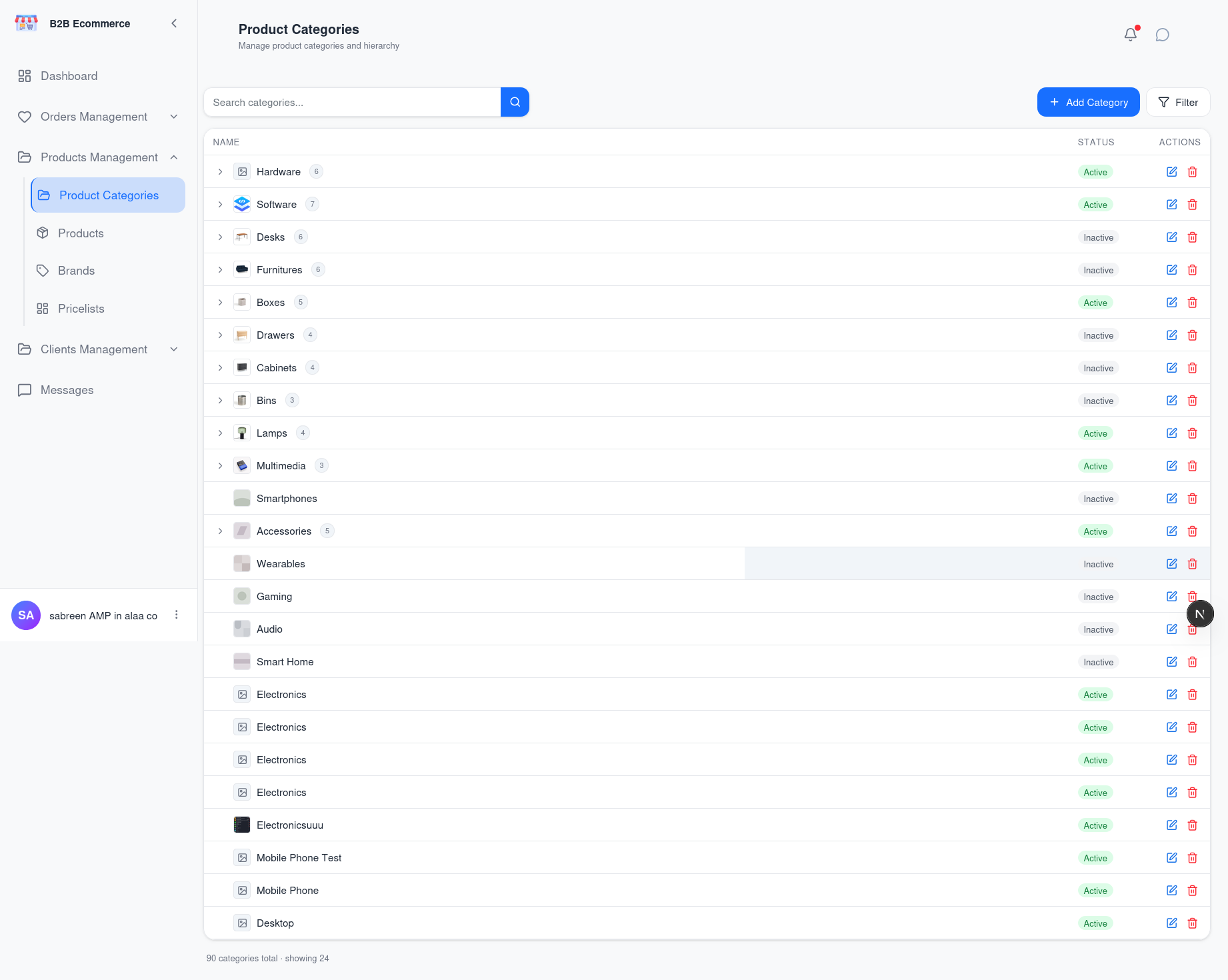
Screen name: Product Categories Business purpose: Define the browsing structure customers navigate. Who uses it: Account Managers, Business Administrators. Navigation path: Sidebar → Products management → Product Categories.
What the screen shows
Categories in a tree. Parent categories expand to reveal their children, matching the menu customers see in the Customer Portal header.
| Element | Meaning |
|---|---|
| Expand arrow | Opens a category to show its sub-categories |
| Category image | The picture shown to customers |
| Category name | The label customers see |
Available actions
| Action | Result |
|---|---|
| Add category | Creates a new category, optionally under a parent |
| Edit | Changes name, description, image and parent |
| Delete | Removes the category after confirmation |
| Search | Finds a category by name |
Business rules
- The tree is the customer's menu. Changes appear in the Customer Portal immediately, so plan restructuring rather than experimenting live.
- A category can hold products and sub-categories at the same time.
- Deleting a category does not delete its products, but those products lose that browsing route — reassign them first.
Brands
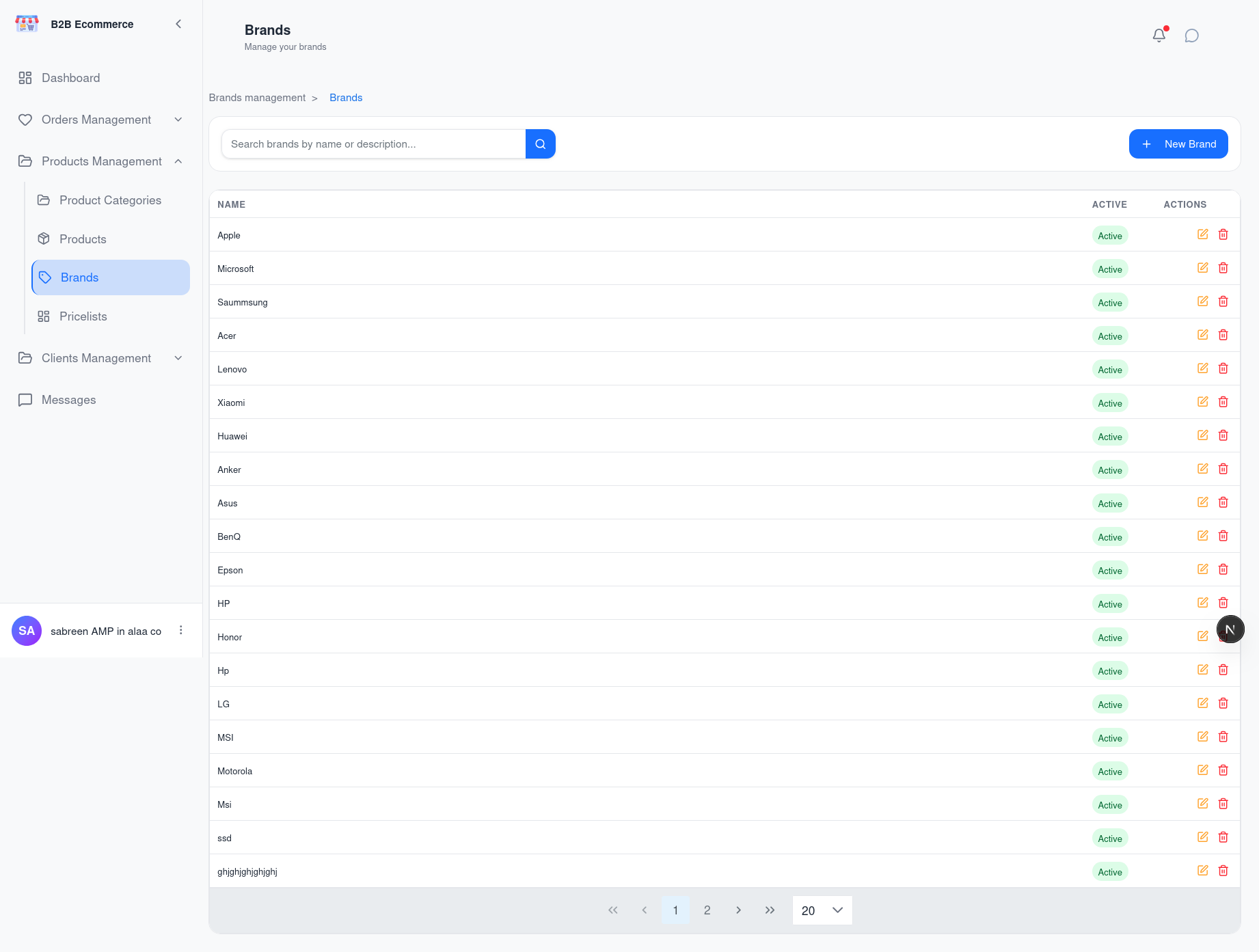
Screen name: Brands Business purpose: Maintain the manufacturer list customers browse by. Who uses it: Account Managers, Business Administrators. Navigation path: Sidebar → Products management → Brands.
Main information displayed
| Column | Meaning |
|---|---|
| Name | The brand as customers see it |
| Active | Whether it appears in the customer's Brands menu |
Available actions
| Action | Result |
|---|---|
| Add brand | Creates a brand |
| Edit | Changes the name, description or active state |
| Delete | Removes the brand |
| Search | Finds a brand by name |
Business rules
- Brand names must be unique. A duplicate name is refused.
- Switch a brand off rather than deleting it when it is temporarily out of range. Deactivating removes it from the customer menu but keeps the history intact.
- A brand in use by products cannot simply disappear — reassign the products first.
Products
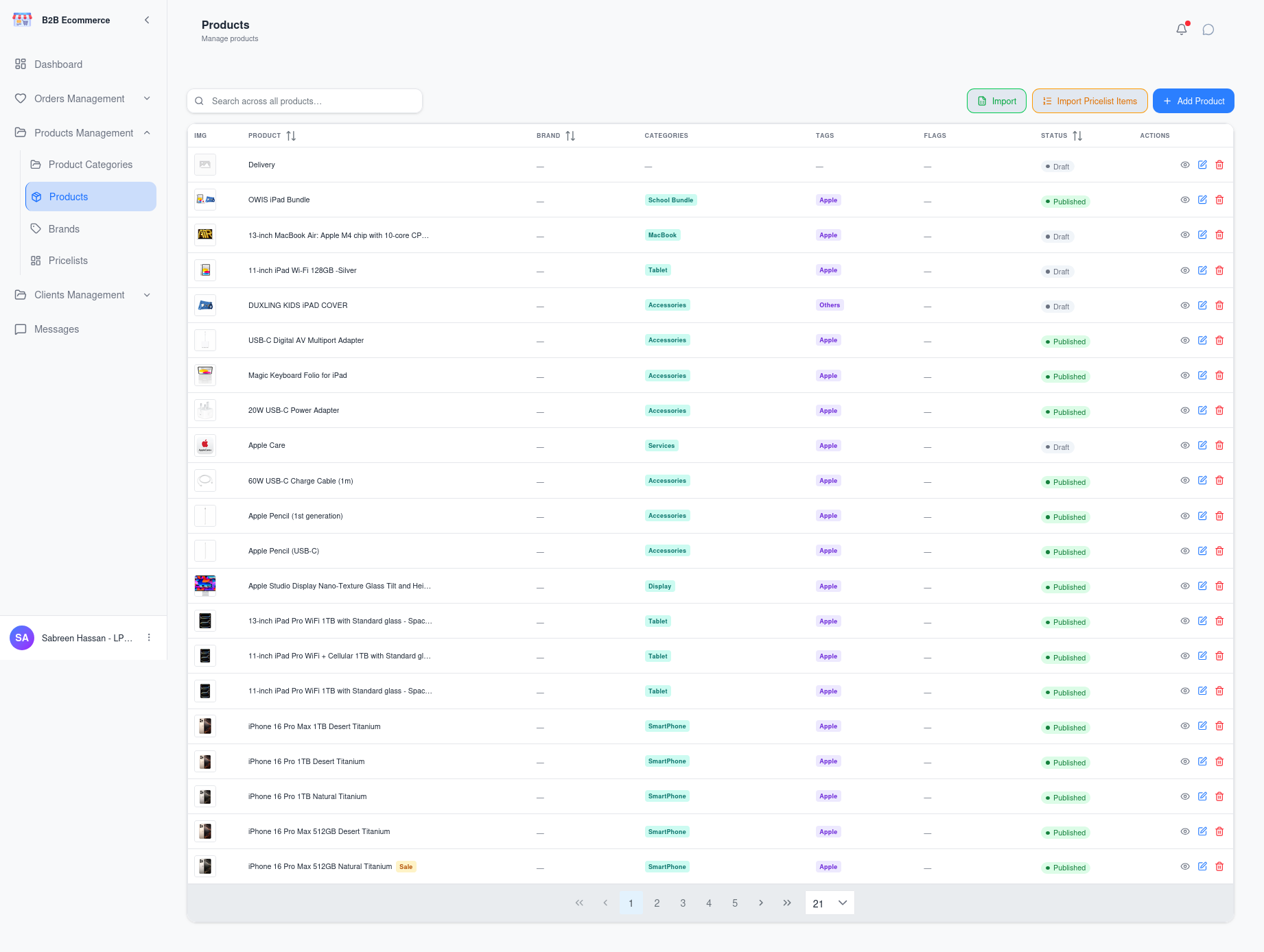
Screen name: Products Business purpose: Maintain the items customers can buy. Who uses it: Account Managers, Business Administrators. Navigation path: Sidebar → Products management → Products.
Main information displayed
| Column | Meaning |
|---|---|
| IMG | Product thumbnail |
| Product | Product name |
| Brand | Manufacturer |
| Categories | Where it appears in the customer's browsing menu |
| Product Tags | Labels customers can filter by |
| Flags | Special markers such as Featured or Requires Consultation |
| Status | Whether it is published to customers |
Available actions
| Action | Result |
|---|---|
| New Product | Opens the product form |
| Edit | Opens an existing product |
| Delete | Removes the product |
| Import | Loads many products at once |
| Search | Finds by product name |
The Product Form
Opening a product gives you five tabs.
| Tab | What you maintain there |
|---|---|
| General | Name, brand, categories, product badge, product notice, and the flags |
| Product Attributes & Values | The characteristics the product varies by — size, colour and similar |
| Product Variants | The individual sellable versions produced from those attributes |
| Sales & Descriptions | Short description, long description, terms and conditions |
| Media | Images |
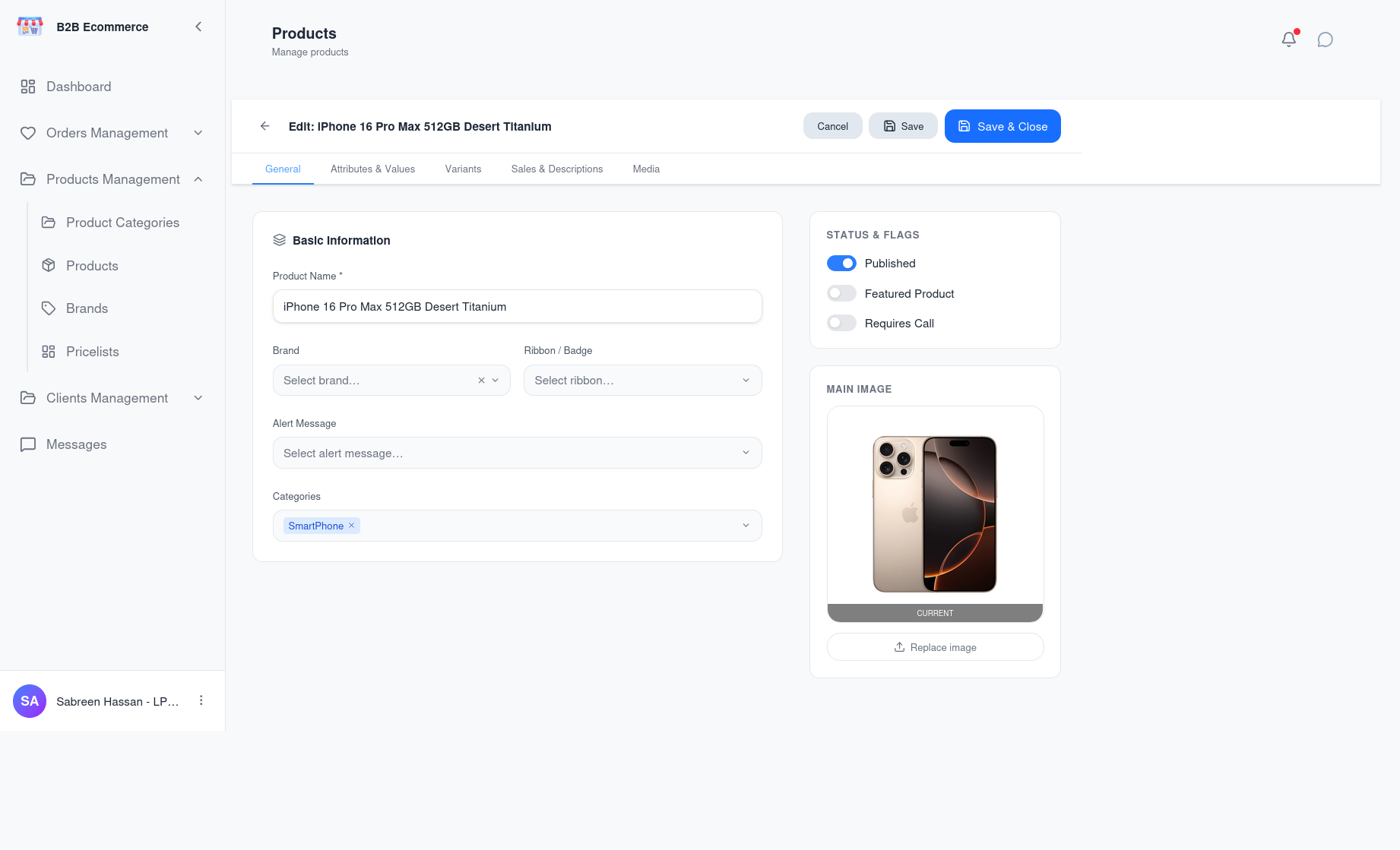
General tab
| Field | Business meaning |
|---|---|
| Product Name | Required. What customers see |
| Brand | The manufacturer |
| Categories | Where it appears in the browsing menu. A product can sit in several |
| Product Badge | A small marker on the product card, such as New or Sale |
| Product Notice | An important notice shown on the product page |
| Published | Whether customers can see it at all |
| Featured Product | Promotes it onto the customer Home page |
| Requires Consultation | Marks it as needing a conversation before ordering. Customers see Call Required |
Product Attributes and Product Variants
Use these when one product comes in several versions.
flowchart LR
    A["Define product attributes<br/>e.g. Size, Colour"] --> B["Add values<br/>e.g. S/M/L, Red/Blue"]
    B --> C["Generate product variants"]
    C --> D["Each combination becomes<br/>a sellable version"]
Customers choose between product variants on the product page. Combinations you have not created are shown as unavailable, so they cannot request something that does not exist.
Sales & Descriptions
| Field | Where the customer sees it |
|---|---|
| Short Description | On the product card and near the top of the product page |
| Long Description | The main body of the product page |
| Terms & Conditions | A dedicated section on the product page |
Media
Upload the images shown in the product gallery. The first image is used as the thumbnail in lists.
Business rules
- Product Name is required; nothing else is.
- Changes to the General, Sales and Media tabs are saved as you move between tabs.
- Published controls visibility, but pricing controls availability. An unpublished product is hidden from everyone; a published product is only visible to customers whose price list covers it.
Importing Products in Bulk
Screen name: Import Products Business purpose: Load a large batch of products without entering them one at a time. Who uses it: Business Administrators. Navigation path: Products screen → Import.
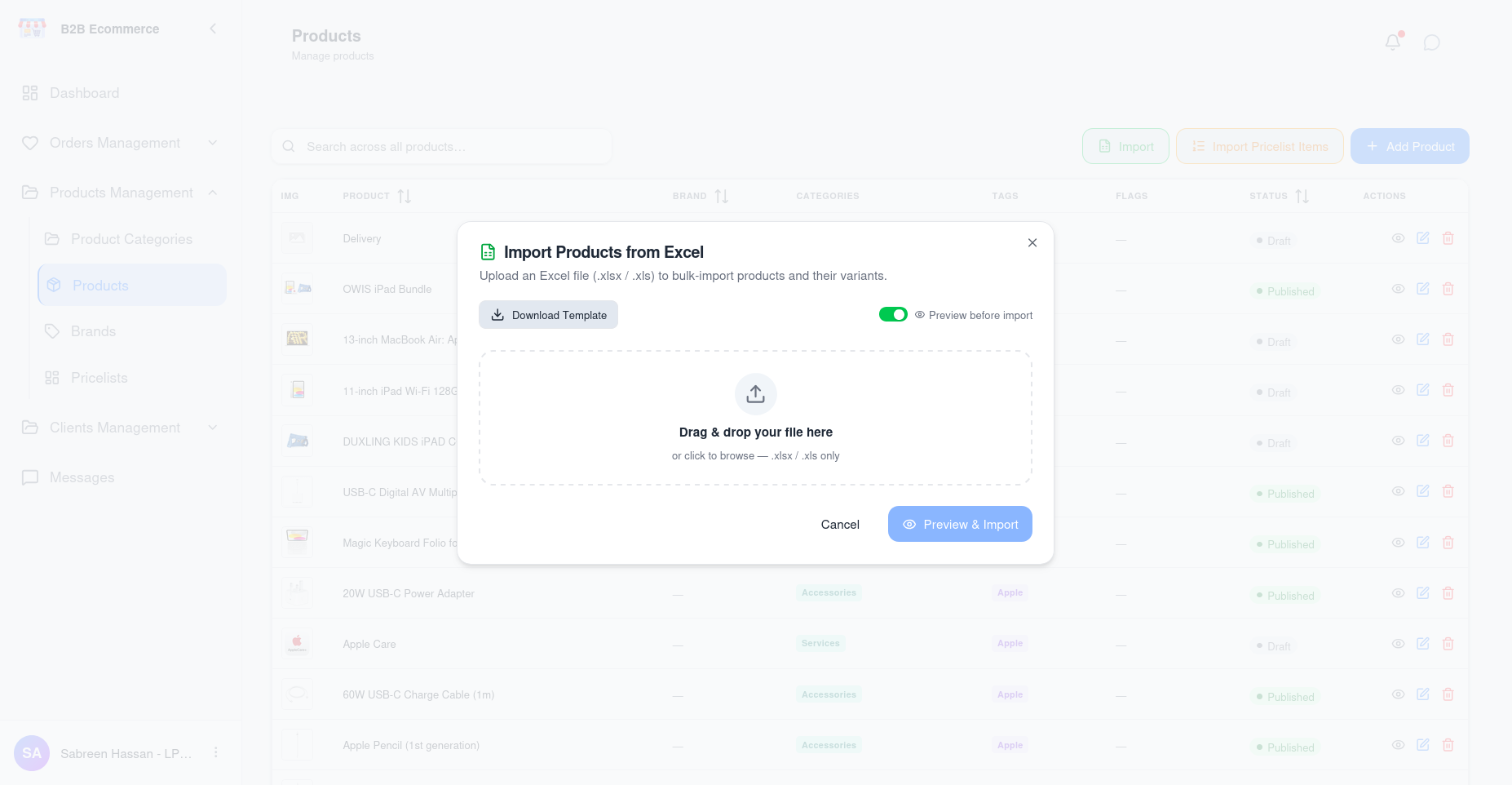
What the import does
- Creates products that do not exist and updates those that do
- Creates missing brands and categories automatically
- Creates missing product attributes and values, and builds the product variants
- Sets prices on the price lists included in the data
- Downloads product images where image links are supplied
When it finishes you see an Import Result panel. A clean run reports All items were imported successfully.
Business rules
- Always test with a small batch first. The import creates supporting records — brands, categories, product attributes — as a side effect, and a badly formed file can leave clutter behind.
- Products are matched to decide create-versus-update. Re-running the same file updates rather than duplicates.
- Review the result panel every time. Partial success is possible.
Making a Product Available to a Customer
This is the question new staff ask most often. Adding a product is only half the job.
flowchart LR
    A["1 · Create the product"] --> B["2 · Set Published"]
    B --> C["3 · Assign a category<br/>so it can be browsed"]
    C --> D["4 · Add a price rule on the<br/>customer's price list"]
    D --> E["Customer can see<br/>and request it"]
If a customer reports that they cannot see a product, work down that list. Step 4 is the usual culprit.
Tips
- Use Featured Product deliberately. It is prime space on every customer's Home page.
- Product Notices are for things that affect the purchase decision — supply constraints, regulatory notes — not marketing copy.
- Set Requires Consultation on anything genuinely needing a conversation. It sets expectations before the customer submits a request.